
The short answer
How do you stop supplier imports overwriting Shopify fields?
Decide which source owns each field and configure updates accordingly. If you only need supplier stock, do not automatically replace descriptions, tags, titles or images. For native Shopify product CSV uploads, understand how the overwrite matching-handles option treats supplied fields and blank values before importing. For recurring updates, a field-controlled mapping and test process can reduce accidental overwrites while still refreshing the information the supplier actually owns.
POWERFEED IN PRACTICE
Refresh supplier data without losing your own work.
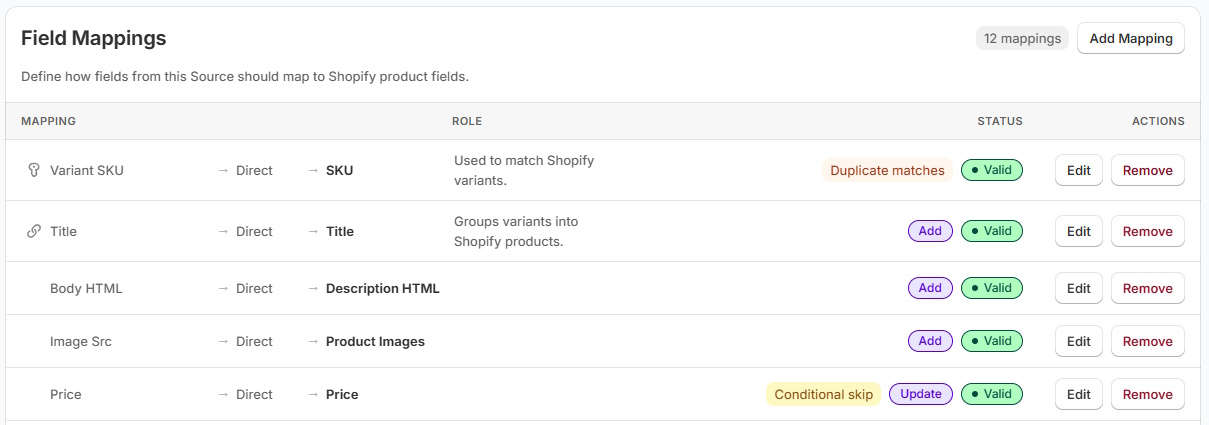
Your store's descriptions, imagery and merchandising may be better than the supplier's. PowerFeed lets you control which fields a supplier source is allowed to update, so stock and price changes don't have to overwrite the product content you've carefully maintained.
- Limit updates to the fields you choose
- Use safeguards and test unusual input
Practical guide
Build a field ownership policy
- Separate supplier-owned from merchant-owned information. Stock availability and some prices may come from the supplier; product storytelling, SEO copy and merchandising may be written by your team.
- Identify the matching key. The wrong product or variant match can harm unrelated listings even when the selected field is valid.
- Choose explicit update permissions. Decide whether the source may create products, update existing ones, skip certain records or touch only specific mapped fields.
- Test missing and empty values. A file that lacks a column is not necessarily the same as one supplying a blank value. Never assume an empty price, image or description is safe to import.
- Review guardrails and run history. Check unusual changes, errors and skipped records to see whether the source behaved as intended.
Worked example
The difference between missing and empty
| Supplier row situation | What it signals | Safe action to consider |
|---|---|---|
No description column at all | Supplier did not provide that field | Do not automatically infer a desire to clear Shopify description |
description column exists but is blank | Value was provided empty | Confirm whether blank means 'clear' or 'unknown' before writing |
stock = 0 | Could mean sold out, unavailable or upstream feed failure | Validate supplier semantics and safeguards |
| No SKU match | Source cannot confidently identify target | Skip or review, rather than update by vague title |
Exact missing and empty value behaviour depends on the platform and import configuration. Test both situations before allowing a source to change existing content.
What to watch for
Risks of overwriting existing product data
A supplier's generic description may be less useful than the version your team has edited. Depending on how blank values are handled, an empty image field could remove existing imagery. Changes to supplier product grouping can also affect variant matching. Some mistakes require a catalogue backup to reverse. Check the source, restrict which fields it may change, test a small sample and review the results before enabling full updates.
Read Shopify’s product CSV import and overwrite guidance before importing.
Where PowerFeed fits
Supplier updates, with boundaries
PowerFeed's mappings, source contracts and guardrails help a merchant define which source may create or update which product fields, with visibility into what happened after a run. The system can support stock- or price-oriented updates without automatically rewriting unrelated content when configured that way. Merchants should still review unusual input and test the behaviour of missing, blank or unexpected values for their specific source.
Questions about protect existing product data
- Does Shopify's native CSV import overwrite existing descriptions?
- It can, depending on matching handles, the overwrite option and which columns the CSV supplies. Shopify documents how blank supplied fields can replace existing values; review the settings carefully.
- Can I update only stock and prices?
- A controlled mapped workflow can focus on the fields intended for update. Validate identifiers, locations and the specific import configuration before enabling the full source.
- What if a supplier drops a column in a new file?
- Review the new file structure and confirm how missing fields are handled before the next scheduled update. A missing supplier column should not automatically result in Shopify data being cleared.