
The short answer
How do you sync supplier stock with Shopify?
Start with a dependable supplier availability feed, match each SKU or variant to the correct Shopify inventory item, choose the appropriate inventory location and update method, then refresh the information on a suitable schedule. Shopify also supports manual inventory CSV imports for bulk adjustments. An automated feed is more practical when supplier stock moves throughout the week. No scheduled feed guarantees that overselling cannot occur: supplier timing, other dealers, your own orders and Shopify inventory states still matter.
POWERFEED IN PRACTICE
Keep supplier stock updates under control.
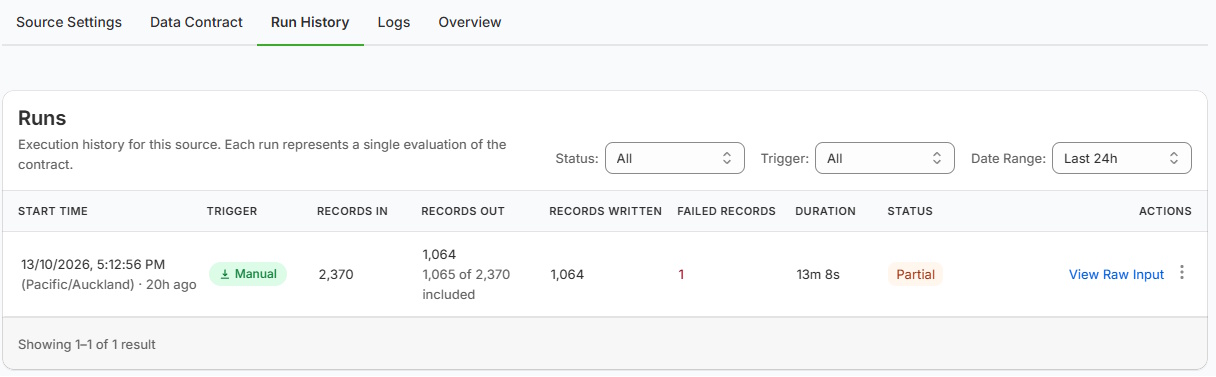
Out-of-date supplier availability can lead to orders you can't fulfil. PowerFeed uses scheduled supplier data to update stock for matched Shopify products, with run results you can inspect. That reduces manual work and the risk of stale stock, but can't guarantee real-time availability.
- Match stock to the correct SKU or variant
- Check run outcomes and exceptions
Practical guide
Five things to get right before automating stock
- Identify the source of truth. Is the supplier's number actual available-to-sell quantity, on-hand stock, a backorder indicator or a catalogue 'in stock' flag? These aren't interchangeable.
- Match variants accurately. Stock is held at the item/variant level. Size and colour mistakes can put quantity on the wrong product.
- Understand Shopify locations and inventory states. On-hand, available and committed quantities are not identical. How your workflow writes stock should account for Shopify's own sales and fulfilment processes.
- Choose a realistic cadence. A supplier that refreshes its source twice daily cannot give you minute-by-minute accuracy. Plan availability also affects how frequently your connection can run.
- Check unusual movements. Investigate sudden zeros, missing records and big changes; an absent product row isn't automatically proof the supplier has no stock.
Worked example
Why a stock feed isn't a guarantee
| Time | Event | Why it matters |
|---|---|---|
| 9:00 am | Supplier reports 12 units | Shopify receives the latest known supplier availability |
| 10:15 am | Another dealer orders 8 units from supplier | Your store may still show the earlier supplier number |
| 12:00 pm | Supplier publishes an updated feed | Your update process can only see this change once published and run |
Safety buffers or conservative selling policies may help some retailers, but must be chosen for the business. PowerFeed alone cannot reserve stock at external suppliers.
Illustrative sample data
- 9:00 am · Feed received
- 12 reported
- Latest known supplier quantity.
- 10:15 am · Another dealer buys
- 8 ordered
- The earlier feed is now stale.
- 12:00 pm · Feed refreshed
- Update pending
- The change reaches your store after a run.
What to watch for
Don't treat every stock number as the same number
Supplier reported availability is the supplier's latest statement of what can be sourced; it is not automatically stock held at your Shopify location. Shopify on-hand is the total recorded at a location, while available is the portion customers can buy. Committed stock is already allocated to orders or other commitments; reserved or otherwise unavailable stock is also not freely available to sell. These quantities are not interchangeable. Shopify sales and fulfilment change inventory states, so replacing a quantity without accounting for those changes can produce a misleading result. Decide which location represents supplier stock, how local stock stays separate and how orders are reconciled. Confirm the quantity state your configured PowerFeed workflow updates with the team before going live; do not assume a particular API write mode.
For the native alternative and location-specific inventory behaviour, see Shopify’s inventory CSV documentation and inventory state definitions.
Where PowerFeed fits
PowerFeed inventory updates and run history
PowerFeed can map supplier stock data to the appropriate Shopify catalogue records using configured identifiers and update rules. Set a relevant schedule within your plan, retain control of the source configuration and review the outcome after runs. That can reduce repetitive stock uploads and lower the risk of stale availability, while leaving the underlying stock ownership and order-reconciliation decisions with the merchant.
Questions about supplier inventory sync
- Can I update Shopify inventory with a CSV instead?
- Yes. Shopify provides a native inventory CSV import for bulk manual updates. It can be appropriate for infrequent changes; repeating it frequently is more work.
- Will inventory sync stop all overselling?
- No. It can reduce risk from outdated supplier data but can't prevent changes that happen between supplier updates or orders that haven't been reflected in the source.
- How frequently should supplier stock update?
- As often as the supplier meaningfully refreshes its feed and your plan permits, balanced against the risk and importance of availability accuracy.